Connect over wireless ADB, open an interactive shell, sideload applications, and mirror the dashboard display.
With manufacturing mode active, port 5555 unblocked in the firewall, and your ADB key authorized, you can use standard Android SDK platform tools to connect wirelessly, execute commands, install applications, and mirror the dashboard.
Finding Your Scooter’s IPv4 Address (Optional)
Section titled “Finding Your Scooter’s IPv4 Address (Optional)”Connecting over IPv4 using your local Wi-Fi subnet is often the most convenient method. If you do not have access to your router’s administration page to find the DHCP client lease, you can view the assigned IPv4 address directly on the scooter’s touchscreen:
-
Open Wi-Fi Settings: On your scooter display, open the settings menu and navigate to Wi-Fi.
-
Select Connected Network: Tap directly on the Wi-Fi card you are currently connected to.
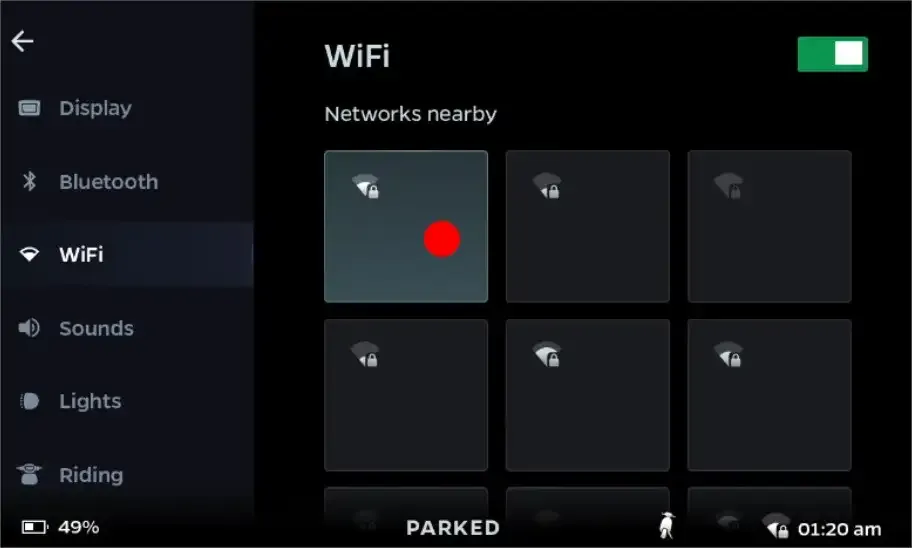 Tap on the active Wi-Fi network card to open its connection details.
-
Locate IPv4 Address: The network details screen will display your scooter’s current network configuration:
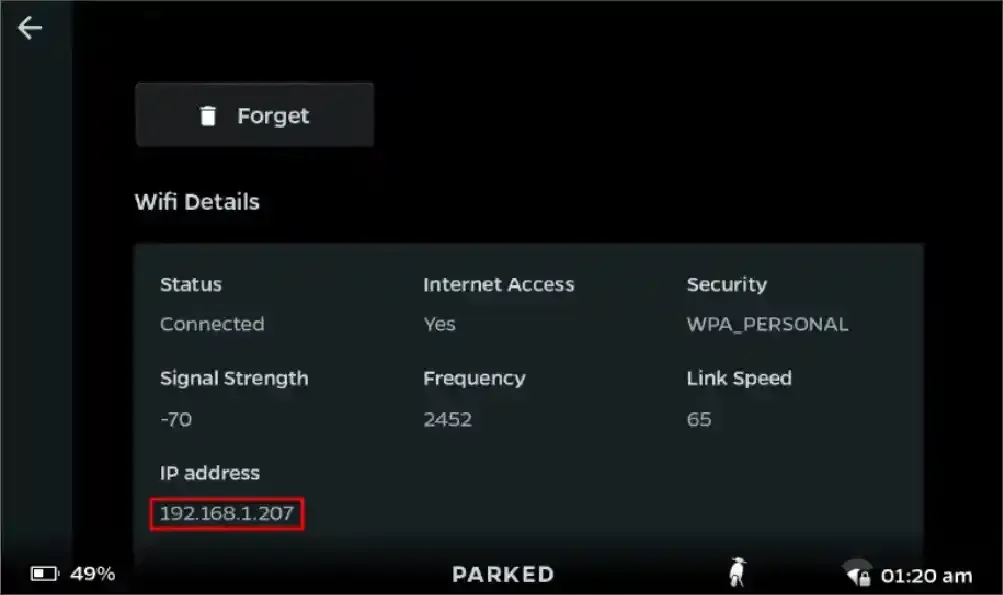 Your IPv4 address is shown on this screen.
Connect via Wireless ADB
Section titled “Connect via Wireless ADB”You can connect over standard IPv4 (using the scooter’s DHCP address) or over IPv6:
adb connect <scooter-ip>Verify the connection:
adb devicesExpected output:
List of devices attached<scooter-ip>:5555 deviceOpen an Interactive Shell
Section titled “Open an Interactive Shell”Launch an interactive shell through standard ADB:
adb shellCheck your user identity:
tb8768p1_64_bsp:/ $ whoamishelltb8768p1_64_bsp:/ $ iduid=2000(shell) gid=2000(shell) groups=2000(shell),1004(input),1007(log),1011(adb),1015(sdcard_rw),1028(sdcard_r),1078(ext_data_rw),1079(ext_obb_rw),3001(net_bt_admin),3002(net_bt),3003(inet),3006(net_bw_stats),3009(readproc),3011(uhid),3012(readtracefs) context=u:r:shell:s0tb8768p1_64_bsp:/ $Screen Mirroring with scrcpy
Section titled “Screen Mirroring with scrcpy”You can mirror and control the scooter’s touch dashboard in real time using scrcpy:
scrcpy -s <scooter-ip>:5555 --max-size 1024 --video-bit-rate 4MA window will appear showing the live MoveOS dashboard, allowing you to interact with touch controls using your mouse.
Quick Useful Commands
Section titled “Quick Useful Commands”Here are some helpful commands you can run immediately:
1. Launch Diagnostic Mode
Section titled “1. Launch Diagnostic Mode”Launch diagnostic mode to test and inspect scooter hardware components, sensors, and onboard vehicle features directly on the dashboard:
adb shell am start -n com.ola.mfgapp/.MainActivity2. Launch Native Android Settings on the Screen
Section titled “2. Launch Native Android Settings on the Screen”To bring up the full Android system settings panel directly on the scooter display:
adb shell am start -a android.settings.SETTINGS3. View Battery & System Telemetry
Section titled “3. View Battery & System Telemetry”Query the virtual CAN bus interface (vcan0) to see real-time vehicle frames:
adb shell candump vcan04. Sideload an APK
Section titled “4. Sideload an APK”Install any standard Android application:
adb install my_app.apkWhere to Go Next
Section titled “Where to Go Next”Now that you have an interactive shell over ADB, the next step is getting root access through ADB: